New Your photo in the keys, 23 fonts and 17 letter styles

The keyboard that never argues back.

Most keyboards fix a typo by making a different mistake. Pilcrow is built the other way round: it reads the whole sentence, corrects what you meant, and leaves alone what you actually wrote.

  • Forty languages, one sentence
  • Swipe typing
  • Themes you make yourself
  • A dictionary you can edit
  • No networking code
Download on theApp Store Free for three days from your first word. Then unlock it once and keep it.
Pilcrow on an iPhone, in a message thread. The draft reads “Lumi says yes, see you tomorow”, and the suggestion bar offers the typed word in quotes, then the highlighted correction “tomorrow”, then “tommorow”.

Why it exists

Every keyboard learns. Almost none of them listen.

The loudest complaint about every keyboard on every platform is the same four words: it did it again. A word you meant, rewritten. A name you use every day, “corrected”. A correction you undid, applied again the next morning.

Pilcrow is built around the opposite promise. A word that exists is not rewritten. A correction you undo is never applied to that word again. And everything it learns about you is a list you can open, read, and edit, one line at a time.

Six things it does differently

Six things it does differently

It backs off

A word that exists is left alone. When it is not sure, it leaves the word as you typed it. Undo a correction once, by backspace or with the undo chip, and that pair is never tried on you again — not for this message, ever.

Measured on held-out text: a correctly spelled word is changed fewer than 7 times in 1,000.

One tap fixes the whole message

Not just the last word. One tap weighs every word against the whole sentence, repairs what is wrong, tells you how many words it changed, and one more tap puts them all back.

Of words typed with a genuine slip, 61–72 % come back right.

Several languages, one sentence

Enable the languages you write and it tells them apart word by word. No globe key mid-sentence — and when you do want to switch, slide along the space bar. Type any of them on the layout your fingers already know, and swipe in all of them.

Missing accents restored 74–85 % of the time, measured per language.

It learns you, and never stops

Your words, the spellings you prefer, the phrases you repeat, the slips you keep making by hand. The keys quietly learn where your own finger lands, too. It keeps adapting for as long as you type, and lets go of what you stop using.

Predictions save 27–35 % of keystrokes before it has learned a thing about you.

It looks like yours

Eight finished looks to start from, your own photo in or behind the keys, see-through keys, and the letters drawn in any of 23 fonts or 17 letter styles. Your typing stays plain text, so corrections keep working.

Every look comes in a light and a dark form, and follows your phone.

Private by construction

The keyboard extension contains no networking code. Not encrypted, not opt-out: absent. No account, no cloud, no analytics, no ads. Even the models that correct and predict your words run on the phone.

Works completely with Full Access switched off.

Corrections, read in context

It reads the sentence, not just the word.

A small network trained on the keyboard’s own decisions now chooses the word when you press space, weighing what the sentence model thinks of every candidate. It changes a correctly typed word less often than before, and when it is unsure it does nothing at all. It runs on your phone, in about a millisecond.

Pilcrow’s keyboard with the suggestion bar showing the typed word “tomorow” in quotes with a plus to keep it, the correction “tomorrow” highlighted, and “tomorrow’s”.
What you typed stays one tap away, in quotes, with a + to keep it.
  • ver difficultvery difficult

    The next word can fix the last

    Once the following word makes the meaning clear, a typo it had left alone gets fixed — with the undo chip, as always.

  • THeThe

    Shift held a beat too long

    Two capitals before lower case is the shift key still down. Acronyms with an ending, like CDs and IDs, are left alone.

  • sooo goodsooo good

    Stretched on purpose

    A word stretched for emphasis stays as you typed it. The plain word waits in the bar, in case.

  • "see you "“see you”

    Quotes that close

    A closing quote or bracket typed after a space hugs the word it closes. One that closes nothing still opens.

  • Accents from the next word

    Both spellings real? It waits

    Where a word is right with and without its accent, the words around it decide — and a wrong guess is quietly taken back.

  • Words from earlier in the chat

    It follows the conversation

    A name or topic from a few lines up comes back as a completion. Held in memory only; nothing is kept in a password field.

New in 1.2.1 · Themes

Make it yours.

Start from one of eight finished looks, each with a light and a dark form — or tap Surprise me for a random theme that is still readable. Then change anything: keys, letters, colours, photo. The editor shows the four colours people change first and keeps the rest under Advanced.

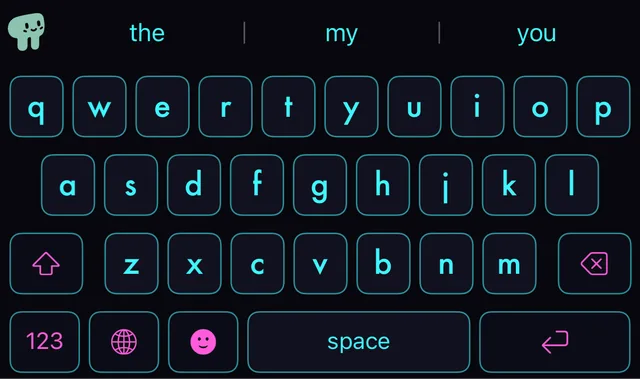
  • The Glass look.Glass
  • The Neon look: outlined keys in a bright accent colour.Neon
  • The Terminal look: green monospaced letters.Terminal
  • The Typewriter look: round cream keys in a typewriter face.Typewriter
  • The Candy look: pink keys with bold rose letters.Candy
  • The Chalkboard look: hand-drawn letters on green.Chalkboard
  • The Gothic look: blackletter on the keys.Gothic
  • The Bubbles look: letters in circles on pale blue.Bubbles

These are the real keyboard, drawn by the same code that runs on your phone. They follow your phone between light and dark — so does this page.

Your picture, three ways.

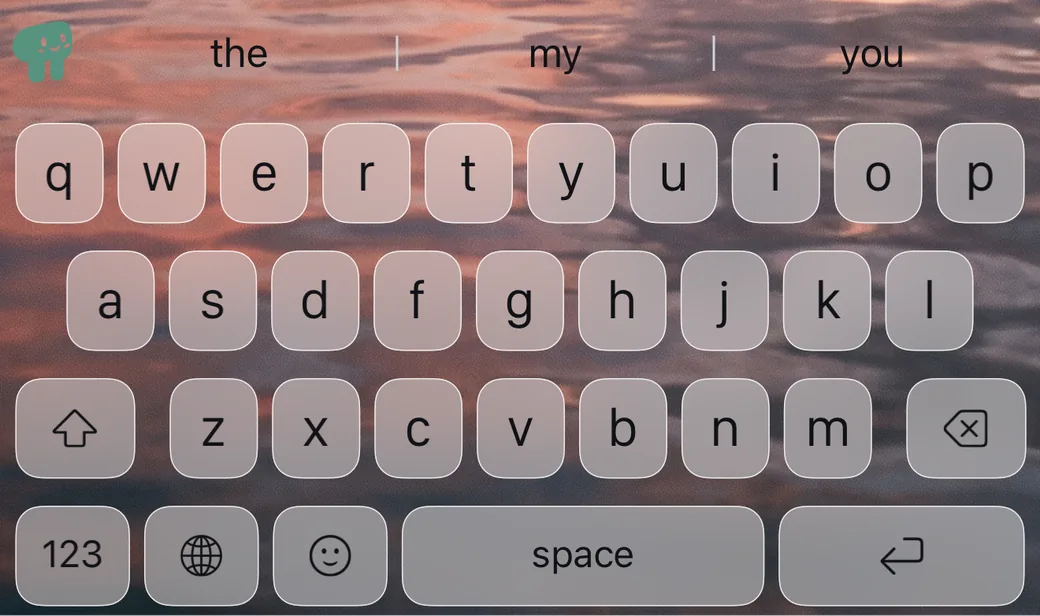
Put a photo behind the keys, inside them — each key showing its own part of the picture — or under frosted-glass keys that blur it. It works on themes that follow light and dark too. You pick it with the system photo picker, and it never leaves your phone.

One slider makes every key see-through while the letters stay solid.

Frosted-glass keys over a photo of a dusk sky reflected in water. A photo of purple and orange silk showing through each key, on a dark keyboard.

Every key, any face.

Draw the letters in one of 23 fonts or 17 letter styles — script, fraktur, double-struck, bubbles, small caps and more — at 80 to 130 % of the usual size. What you type is still ordinary letters, so corrections, suggestions and swipe keep working.

  • Keys with letters in a script style.Script
  • Keys with letters in the Didot font.Didot
  • Keys with letters in fraktur.Fraktur
  • Keys with letters in circles.Bubbles

Type in style, anywhere.

New, and off unless you turn it on: what you type comes out in a letter style — 𝓈𝒸𝓇𝒾𝓅𝓉, 𝕕𝕠𝕦𝕓𝕝𝕖, ⓑⓤⓑⓑⓛⓔⓢ — in any app. Switch it from the toolbar’s Styled letters button or the Themes tab, and back to plain in one tap.

Corrections, suggestions, learning and swipe pause while it is on: styled letters are not words a dictionary knows. Screen readers may spell them out, so keep plain text for anything that matters. More on fancy fonts.

The Styled letters panel open over the keyboard, offering Plain, Bold, Italic, Bold italic, Sans bold, Sans italic, Script, Fraktur, Bold fraktur, Double-struck, Typewriter and Bubbles. The Bubbles keyboard with styled letters on, and a note in the bar: no suggestions or corrections.

Built for thumbs

Swipe a word, then glide on.

Draw a word and lift, or keep going through the space bar into the next one: one gesture can write a whole phrase. Swipe works in every language it ships, words with apostrophes and hyphens included, and when you pick a runner-up it remembers your choice for that gesture.

A swipe trail drawn across the Neon keyboard, with “beautiful” highlighted in the suggestion bar, then “beautifully” and “beauty”.
  • Slide to switch language

    Slide along the space bar for the next language. Words already typed are read again in the new one.

  • Swipe back whole words

    Swipe from backspace to take back a word at a time, and the other way to bring them back.

  • Hold for the corner

    Opt in, and holding a key types the small character in its corner. Hold longer for accents.

  • A tool row you choose

    Up to six tools, and a paste chip for what you just copied. Mascot, tools and chip can each be turned off.

  • One hand, or two thumbs

    A one-handed mode on iPhone, and on iPad a split layout that puts every letter within reach of a thumb.

  • Your own keys

    Make any key on the number and symbol planes type the character you actually use.

A closer look

Three details, straight from the phone.

A draft reading “Lumi says yes, see you tomorow” above the suggestion bar, which shows “tomorow” in quotes, then tomorrow highlighted, then tommorow.
Your word stays one tap away. The slip is fixed on the space bar; the quoted first slot is what you actually typed, kept in case you meant it.
A card reading: 16 words that no dictionary has. Lumi is your most-typed, 41 times. It finishes “running late sorry” for you. 2 corrections you turned down; it hasn’t tried them again.
It tells you what it knows. Words no dictionary has, the phrase it finishes for you, and the corrections you turned down that it never tried again.
A card headed “In tune with you”, marked Always on: your own writing now outweighs the built-in guess, and every word keeps shifting it. Below, a full progress bar and the note that words you stop using retire.
Nothing here is final. Every word you type re-tunes it, words you stop using retire, and a refusal you made by accident is released once you write the word properly again.

The app

Small, and honest about what it is doing.

An ⓘ beside nearly every setting opens a short page: what it does, what it changes on the keyboard, and what it depends on. Two switches that cancel each other out say which one wins.

  • When Apple’s keyboard appears. A page that says when and why iOS shows its own keyboard instead — password fields, apps that allow only Apple’s, dictation — how to switch back, and whether this phone has Pilcrow set up.
  • Languages that update themselves. A newer release of a language you use downloads on its own, and the home screen says when one has arrived.
  • A dictionary you can carry. Back up everything it has learned to one dated file, and restore it later or on a new phone.

The numbers

Measured, not promised.

Every figure comes from replaying held-out text through the shipped keyboard for each language, the same way before every release. Where a number differs by language we quote the range, not the best case.

MeasureResultWhat it means
Correctly spelled words changed< 7 in 1,000The false-correction rate. The number every “it did it again” is about.
Real slips fixed61–72 %Of words typed with one genuine error, the share restored.
Keystrokes saved27–35 %From predictions and completions, before any personal learning.
Missing accents restored74–85 %In languages that use them, when typed without.
Tap accuracy gained+3.8 ppFrom key zones that adapt to how you aim. You never see it happen.
Time per keystroke≈ 1 msAt the 95th percentile, on the phone. It does not lag behind your thumbs.
Ranges are the spread across shipped languages. Single figures are quoted at the worst end of the measured range.

What it keeps, and what leaves

A dictionary you actually own.

Every other keyboard on this phone gives you one button: erase everything and start over.

A word of yours is kept the second time you write it. A phrase after two repeats. A preferred spelling after three. A fix you make by hand becomes a rule after two, and a slip you keep repairing — the same two letters swapped, the same letter dropped — gets cheaper to fix in every word. Each is a line on a screen you can open from the keyboard itself, and each can be deleted, blocked, or edited.

It forgets, too. A word learned from a couple of sightings and never written again retires. A correction you refused once by accident is released when you fix the word by hand or simply write it correctly a few times. Nothing is jailed by one slip of the thumb.

Set any field to don’t learn here and nothing typed there is kept. Back the whole dictionary up to a file and take it to your next phone. Forget everything does what it says, on your device, instantly.

About that warning

Full Access, honestly.

We recommend turning it on.

iOS shows the same warning for every third-party keyboard: that it may transmit what you type. For Pilcrow that is not possible, with the switch on or off, because the keyboard has no code that could do it.

What the switch changes here is small and specific: haptic feedback under your fingers, the clipboard panel and its paste chip, and whether the app can display the word list the keyboard has learned. Corrections, predictions, learning, themes and every downloaded language work either way. Most keyboards ask for it and stop working properly without it. This one does not need it — but haptics and the clipboard are worth having, and turning it on cannot send what you type anywhere, so we recommend it.

Price

Three free days. Then buy it once.

No card, no account, and nothing auto-charges at the end.

  • 3 daysEverything unlockedFrom your first word, not from install.
  • OnceOr a yearly planA monthly one too, if you would rather.
  • NeverDeletedNothing it learned from you goes away.

Download on theApp Store

If you decide not to buy, the keyboard keeps typing. Layouts, languages, emoji and haptics never stop working. Corrections, predictions, swipe, learning and themes wait for the unlock.

Questions

Asked before you ask.

Does Pilcrow send what I type anywhere?

No. The keyboard extension contains no networking code at all, so there is nothing to switch off and nothing to take on trust. Only the companion app talks to the internet, and only to download language packs, to ask the App Store whether a newer version exists, to verify a purchase, and to send feedback you write yourself.

Do I need to turn on Full Access?

You don’t need it, and we recommend it. Typing, corrections, predictions, learning and downloaded languages all work with it off. On, it adds haptics, the clipboard panel, and lets the app show your learned words. It never means internet for this keyboard.

What happens after the three free days?

The keyboard keeps typing, and nothing auto-charges. Layouts, languages, emoji and haptics never stop. Corrections, predictions, swipe, learning and themes pause until you unlock it, and nothing it learned is deleted.

Can I put my own photo in the keyboard?

Yes — behind the keys, inside each key, or under frosted-glass keys. You pick it with the system photo picker, and it never leaves your phone. How keyboard themes work on iPhone.

Do the fancy letter styles work in every app?

Styled typing writes Unicode characters, so they show up in any app that shows text. It is off unless you turn it on, and corrections, suggestions, learning and swipe pause while it is on. Screen readers may read styled letters oddly, so keep plain text for anything important.

Can I delete a single word it learned?

Yes, one at a time, from inside the keyboard (hold any suggestion) or from the app. You can also block a word for good, set any field to “don’t learn here”, and back the whole dictionary up to a file. Why that matters.

Which languages does it support?

Forty today, with more being added. Enable several at once; it tells them apart word by word, and each can be typed on the layout you already know.

Why does Apple’s keyboard sometimes appear instead?

iOS always uses its own keyboard in password and phone-number fields, and some apps allow only Apple’s. The Pilcrow app has a page that lists every case and how to switch back. The full list.

Does it read my contacts?

It consults them so a name you type every day stops being corrected into something else. Nothing is copied anywhere, and the keyboard could not send it if it tried.

Is there an AI in it?

There are small language models, and they run on your phone: one predicts the next word, others decide what to correct. Nothing is sent away to be guessed at, and they answer in about a millisecond.

Does it work on iPad?

Yes, on iOS and iPadOS 17 or later — including a split layout that puts every letter within reach of a thumb. Split keyboards on iPad.

Why is it called Pilcrow?

The pilcrow, ¶, is the mark that has stood for a paragraph since the Middle Ages. It is a character you type, and it is about writing. That seemed right.

From the blog

Notes on typing.

All posts