
How-to
How to change the keyboard theme on iPhone, your own photo included
Apple’s keyboard follows your phone between light and dark, and that is the whole of its wardrobe. If you want a colour, a font or a photo on your keys, you need a different keyboard — and the choice of which one matters more than the theme.
In short. Apple’s own keyboard has no theme setting: it follows Light, Dark or Automatic appearance for the whole phone. To theme your keyboard, install a third-party keyboard from the App Store, add it in Settings › General › Keyboard › Keyboards › Add New Keyboard, and switch to it by touching and holding the emoji or switch-keyboard key. Then pick a theme inside that keyboard’s app.
What Apple’s keyboard lets you change
The built-in keyboard takes its colours from the phone’s appearance. Apple puts the switch under Settings › Appearance in iOS 27 (it was under Display & Brightness in iOS 26 and earlier), with three choices: Light, Dark, or Automatic, which changes with the time of day. The keyboard follows along.
Everything else in Settings › General › Keyboard changes how the keyboard behaves rather than how it looks: predictive text, Auto-Correction, the one-handed layout. The one exception is Show Lowercase Keys, which decides whether the keys show capitals or small letters. There is no setting for a colour, a background or a font.
How to get a keyboard you can theme
- Install a keyboard from the App Store and open its app once; most walk you through the rest.
- Go to Settings › General › Keyboard › Keyboards and tap Add New Keyboard.
- Choose it from the list of third-party keyboards.
- In any text field, touch and hold the emoji key or the switch-keyboard key and tap the new keyboard.
Choosing a theme then happens in the keyboard’s own app, not in Settings. iOS will ask whether to Allow Full Access as well. Apple’s documentation explains that without it, keystrokes go only to the app you are typing in; with it, they can be available to the keyboard’s developer. A theme does not need it, so read what the keyboard says it uses Full Access for before you decide — our explainer covers what changes.
What to check before you choose one
You will type thousands of words a day on whatever you pick, so the theme is the least important thing about it. Four questions are worth asking first.
- Can you still read the keys? A photo behind white letters looks good in a store screenshot and fails in sunlight. Look for themes that keep the letters at a readable contrast whatever the picture.
- Does it follow light and dark? A theme designed for one appearance glares or vanishes in the other. The good ones have two forms and switch with the phone.
- Where does your photo go? If you use your own picture, it should be picked with the iOS photo picker and stay on your phone. Check the privacy label on the App Store page.
- Is it a good keyboard first? Autocorrect, predictions, swipe and the languages you write matter far more than a background. Try it for a day of real messages before you settle on a look.
How Pilcrow does themes
Pilcrow, the keyboard we make, added a new theme editor in version 1.2.1. Everything in it is drawn by the same code that runs the keyboard, and the preview at the top of the screen is the real keyboard, not a picture of one.
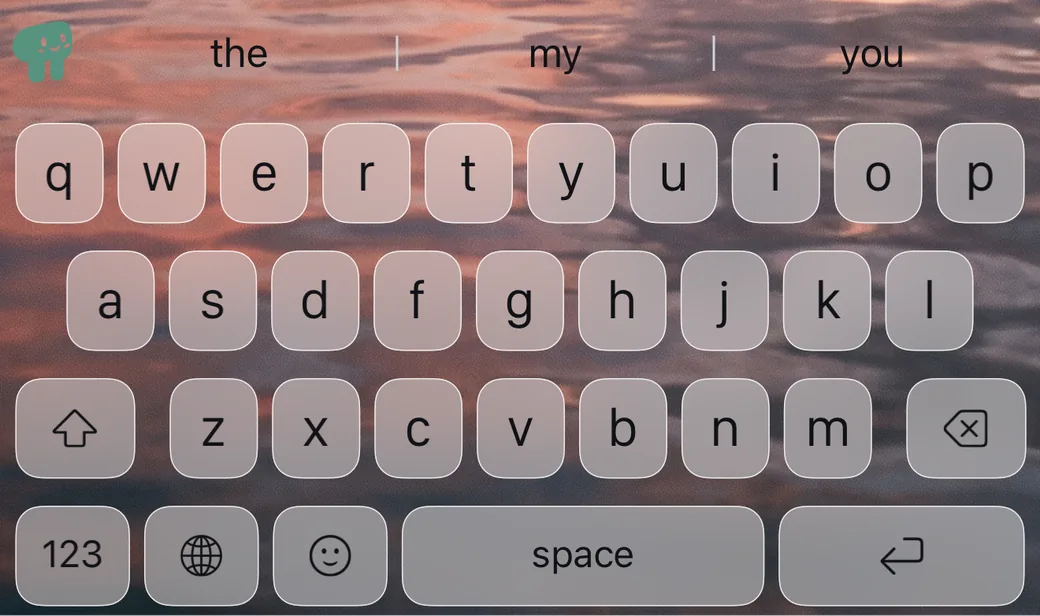
- Eight finished looks to start from. Glass, Neon, Terminal, Typewriter, Candy, Chalkboard, Gothic and Bubbles, each with a light and a dark form. Or tap Surprise me for a random theme that is still readable: every look keeps its letters at a contrast of at least 4.5 to 1 against the keys.
- Your photo, three ways. Behind the keys; inside them, each key showing its own piece of the picture; or under frosted-glass keys. You choose it with the system photo picker and it never leaves the phone — the keyboard itself contains no networking code.
- See-through keys. One slider fades every key while the letters stay solid.
- Letters in another face. 23 fonts and 17 letter styles for the keys, at 80 to 130 % of the usual size. What you type is still plain text, so corrections and suggestions carry on. If you want the styled letters in your messages too, that is a separate, optional mode.
- Simple, then advanced. The editor shows the four colours people change first, and keeps the rest — pressed keys, borders, special keys — under Advanced.
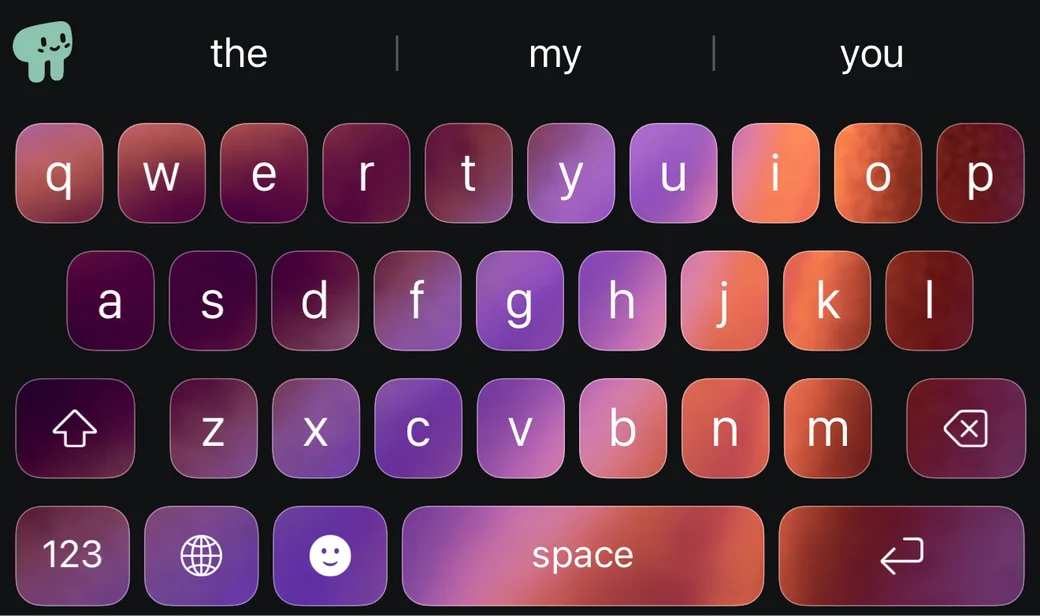
One honest note: themes are part of what you unlock. During the three free days everything is available; if you do not buy, the keyboard keeps typing in the standard look, and your theme is kept for when you do.
Last checked October 2026 against Apple’s iPhone User Guide for iOS 27. If anything here is out of date, write to info@pilcrowtype.com.
Sources
- Apple, Use Dark Mode on your iPhone and iPad (Light, Dark and Automatic; where the setting lives in iOS 27)
- Apple, Add or change keyboards on iPhone (adding a keyboard, switching with the emoji or switch-keyboard key)
- Apple Developer, Creating a custom keyboard (adding a third-party keyboard in Settings)
- Apple Developer, Configuring open access for a custom keyboard (what Full Access changes)
Read next
- Fancy fonts on iPhone: how they work, and when not to use themThey are not fonts at all. What that means for screen readers and search.
- What “Allow Full Access” means for iPhone keyboardsWhat a keyboard can do without it, and what changes when you turn it on.
- Pilcrow vs the iPhone keyboard on iOS 27: an honest comparisonWhat Apple’s keyboard does well, and what changes if you switch.
- Pilcrow: the keyboard that never argues backWhat it does, the measured numbers, screenshots and the price.